

App Backup: free Win32 installer storage
List your Intune Win32 apps, store encrypted copies of original .intunewin packages, and export installers offline. App Backup is free.
App Backup is completely free for every configured tenant. No active license or Community tenant selection is required.
App Backup keeps original Win32 installer packages separately from policy backups. Open it immediately below Backup & Restore in the desktop sidebar.
This first version lists your Intune Win32 apps with their details, guides backup, and supports local source folders, attaching existing .intunewin packages, listing stored versions and exporting the original file. It does not download installers from Intune, upload apps, restore their content or associate a selected installer with a particular Intune content version.
Before you start
Section titled “Before you start”Use a desktop build with App Backup in the sidebar. Select a configured tenant; its Microsoft app registration is needed for live app lists and device checks. You do not need to choose policy-backup storage or activate a license to use App Backup. See Connect your tenant if it is not configured yet.
To store a file, have its original .intunewin package, up to 2 GiB, and enough free space in the source folder. To export it later, keep the matching recovery key. Local file operations do not require Microsoft sign-in or a matching Windows enrollment.
| Action | Available in this version | Microsoft sign-in |
|---|---|---|
| List and search the tenant’s Win32 apps | Yes | Required |
| View app details, print and download available scripts | Yes | Required |
| Check this PC’s public Windows enrollment metadata | Yes, on Windows | Required |
Save an original .intunewin file you already have | Yes | Not required |
| Browse, reconnect and export saved originals | Yes | Not required |
| Capture installer content from Intune | Unavailable | No capture action exists |
| Upload or restore app content to Intune | Unavailable | Complete these steps manually in Intune |
Save your first installer
Section titled “Save your first installer”- Select the tenant, then open App Backup below Backup & Restore.
- Open Saved installers → Save an installer file.
- Optionally enter an app label, then select Save installer and choose the original
.intunewinfile. - Wait for Installer saved. The file appears with Administrator selected provenance.
- Select Export original, choose a new destination filename, and confirm the exported file is available.
- Save the recovery key in Settings → Storage and recovery, and keep a separate copy of the encrypted source folder under your own backup policy.
The default encrypted store is TenuVault App Sources in Documents. The label can help you find a file; it does not prove the file matches an Intune app or version. To start from your tenant’s inventory instead, follow the preparation flow below.
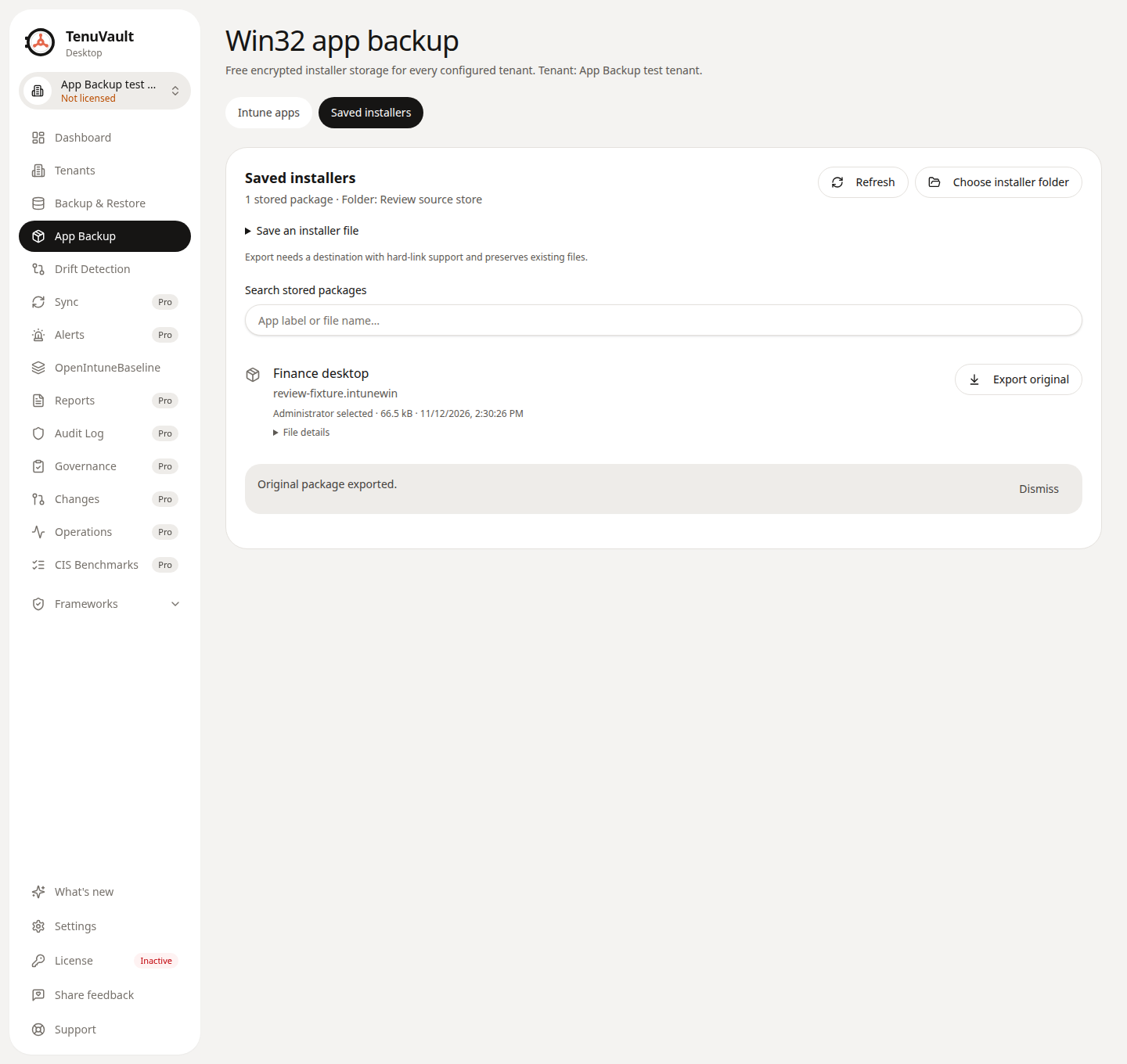
Example from the desktop app with a synthetic tenant and lab package. Attachment, encrypted storage and exact original export ran through the real app handlers.
Start with an Intune app
Section titled “Start with an Intune app”Open Intune apps. The table loads automatically with the Microsoft session already connected to the selected tenant. A healthy existing session needs no additional sign-in. Reconnect Microsoft appears only when the session is missing or a refresh needs attention. Use Save an existing installer to work offline.
The table shows the app name, logo when Intune provides a supported image, publisher, displayed version and last-modified date. Search by name, publisher or version; lists use pages of 25 rows. A missing logo uses an initial, and a missing version says Not specified.
Select the app name or Details to inspect:
- Overview: version, publisher, description, dates, package filename/size and Intune app ID.
- Installation: install/uninstall commands, execution context, restart behavior and runtime limit.
- Scripts: available install, uninstall, detection and requirement script content. Scripts are displayed as text and never executed here. Download saves an available script through a native file dialog as a UTF-8
.ps1file with a BOM for Windows PowerShell compatibility. Downloads check that the returned script still matches the displayed content, preserve existing filenames and do not run it. If it changed, refresh the details first. UTF-8 and BOM-marked UTF-16 scripts are supported; invalid or unsupported encodings show unavailable content with a warning instead of a download. - Detection & requirements: the rule metadata returned by Intune.
- Assignments: returned Required, Available or Uninstall targeting, including group/filter references where provided. This does not calculate effective eligibility for this PC.
Print opens the native printer dialog. Long scripts are explicitly shortened in the printable report; the full returned script remains available in the details view. The printed metadata does not include installer bytes. Failed script or assignment reads show a notice without hiding otherwise available app details.
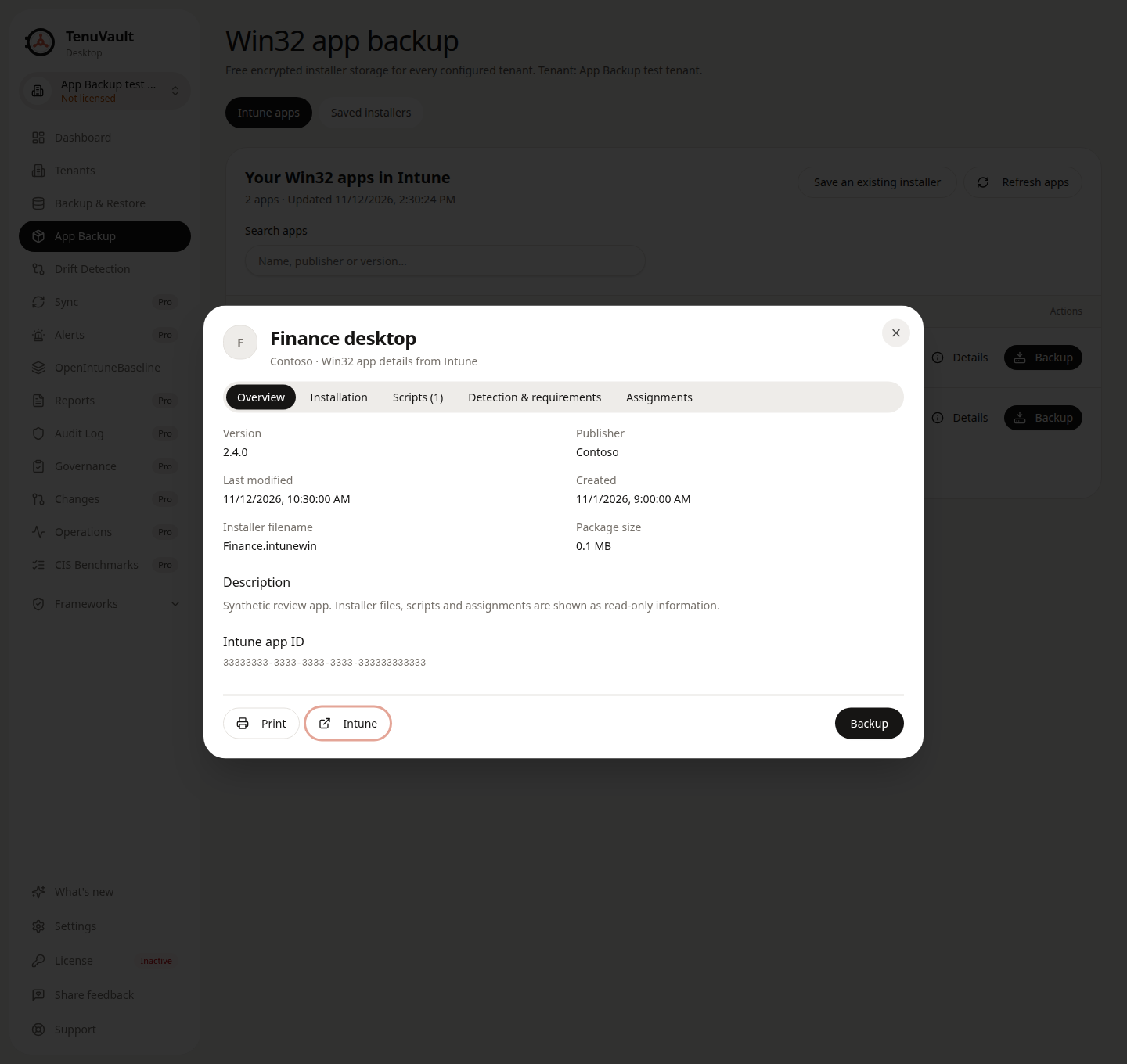
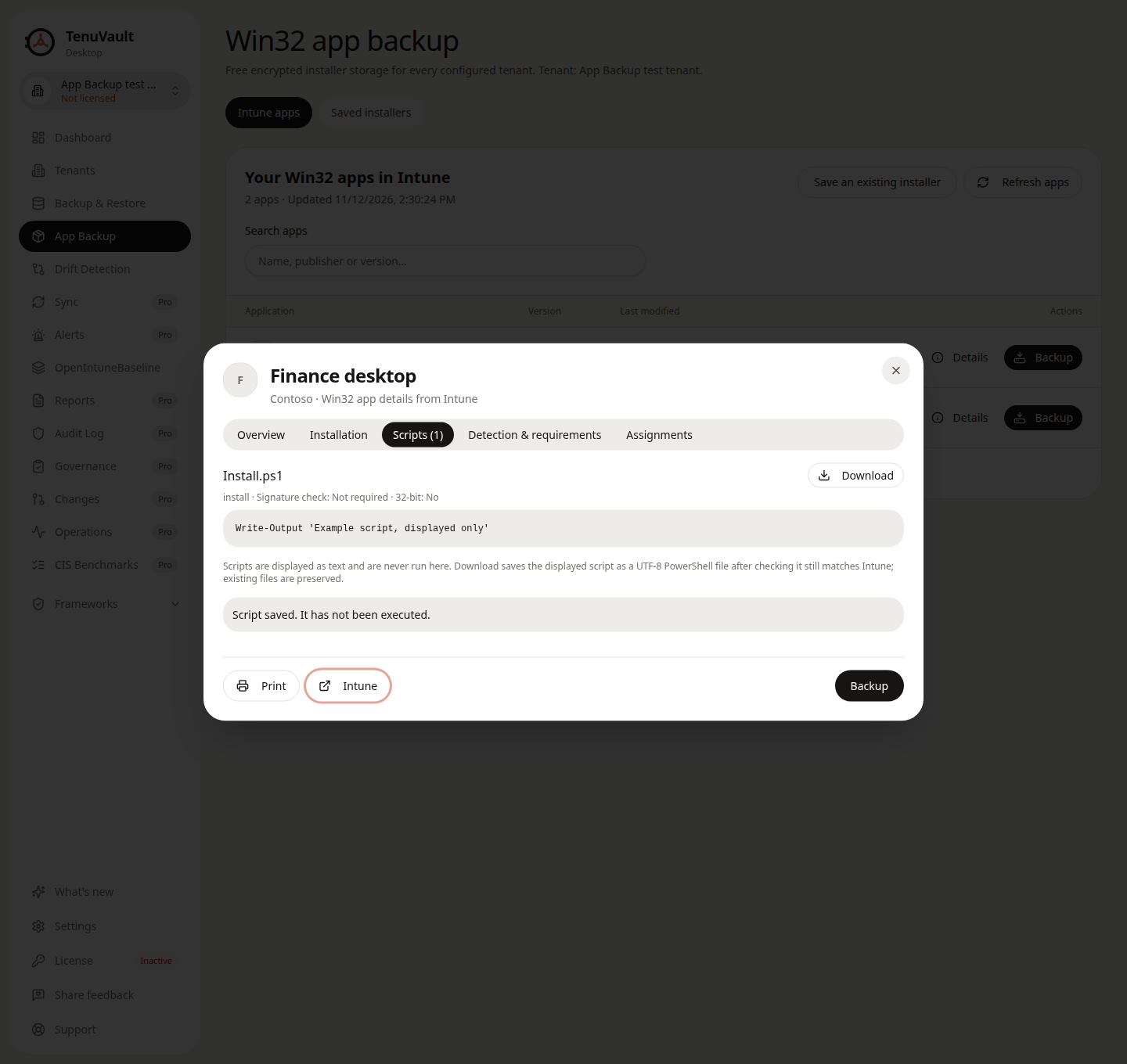
Details examples use synthetic metadata. The script download ran through the real trusted handler; no script was executed.
Select Backup on the app’s row, then Choose installer file. The selected app supplies a label only. Saving does not require a PC check or assignment change.
The optional What capture will need (unavailable in this build) disclosure explains future capture requirements:
- Check that this Windows PC is enrolled in the selected tenant.
- Changing assignments will not enable capture in this build. Do not change assignments for this feature yet. Required assignments can install automatically; any future capture workflow must account for groups, filters and exclusions.
- Capture the original package, verify it and store an encrypted copy. This capture step is unavailable in the current build. The preparation screen does not start an installation, change assignments or extract installed program files.
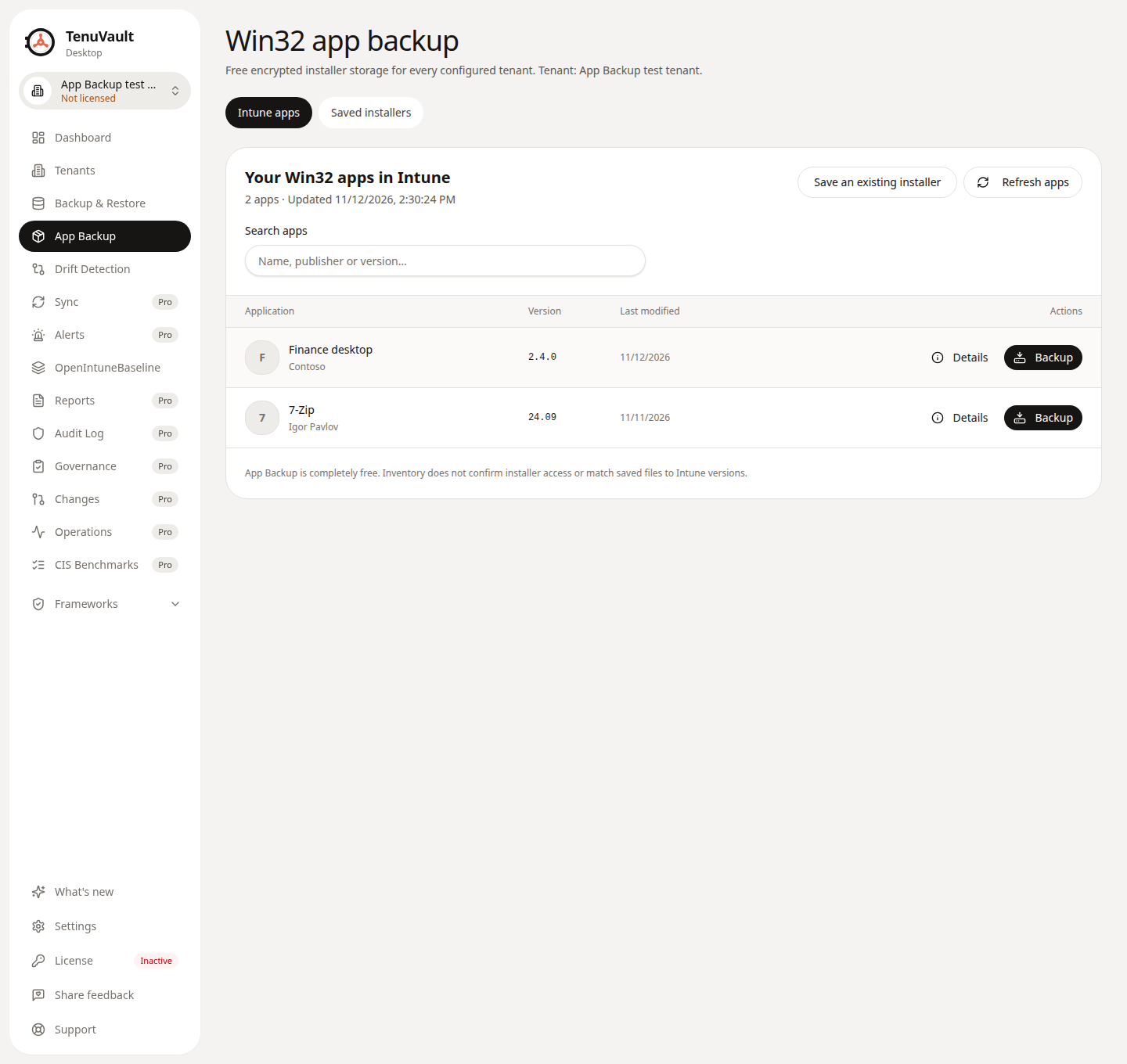
Illustration from the running desktop app using synthetic app names and a test tenant. It demonstrates the UI; it does not demonstrate sign-in or installer access.
The live list follows all Microsoft Graph beta pages and includes exact Win32 app types. A failed refresh does not show a partial inventory or infer that installers are missing. The app list is independent of saved files, so a sign-in or inventory failure does not block offline export.
Already have the original .intunewin file? Choose Choose installer file after selecting an app, or open Saved installers → Save an installer file. Select a package up to 2 GiB. Its encrypted snapshot’s container and metadata are checked before publication. The app name is only an administrator-provided label; matching an Intune content version and installation behavior are not verified.
Reconnect is available from Saved installers. Changing backup storage does not change this store. Sources have no automatic retention or delete action in this version.
Switching between Intune apps and Saved installers keeps a running file operation and its feedback. Leaving App Backup or changing tenant cancels the operation; stay in App Backup until it finishes. Cancel is shown as a neutral notice, and incomplete files are not listed.
Export the original bytes
Section titled “Export the original bytes”Open Saved installers, find the package, then choose Export original. Choose a new file name. An existing destination is preserved, even if the operating system’s file dialog offered to replace it.
Export requires a destination filesystem supporting hard links. On macOS and Linux, exported files initially have owner-only permissions. Export checks the encrypted chunks and complete file hash before publishing the destination. It does not rebuild the package or alter its contents. Stored versions remain browseable and exportable while signed out or without an active entitlement, provided the tenant is still configured and this device has the matching encryption key.
Reconnect after moving to another computer
Section titled “Reconnect after moving to another computer”Keep both the source folder and the recovery key. The source folder contains the encrypted catalog as well as the encrypted artifacts; the recovery key alone does not contain the installers.
On another installation, configure the same tenant, import the matching recovery key in Settings → Storage and recovery, then use Choose installer folder in App Backup to select the root of the retained source folder, which contains the tenant GUID folders. Selecting a tenant folder or an individual package folder is refused. If the selected root has no source store for this tenant, TenuVault asks before using it as a new empty store. Listing and export can read a retained store without creating folders in it. Each source is rebuilt from its encrypted manifest. Reconnecting changes the folder used for this tenant; it does not move or delete previous source folders.
Unreadable or incomplete sources are not silently counted. Interrupted imports stay out of the catalog. Owned staging left by a terminated process is reconciled when the folder is next read; uncertain staging is left unlisted with a notice. Encrypted export journals in local app data track temporary plaintext so a later run on the original computer can remove interrupted exports. Keep the source folder accessible until interrupted work has been reconciled.
Coverage and device checks
Section titled “Coverage and device checks”The Intune app list is live metadata, not evidence of installer availability. Saved packages are not automatically matched to Intune versions. A stored package does not establish restore readiness.
Check this PC is read-only. On Windows it can compare public enrollment/certificate metadata with the selected tenant’s Intune account. It requires Microsoft sign-in and the appropriate Intune permissions for the selected tenant, but no product license or Community tenant selection. Use Reconnect Microsoft on the app table when prompted. The optional Check Windows enrollment action reuses the current session or requests sign-in when it is missing, without a product-license check. Local source operations remain available while signed out. It never uses a private key, requests installer content, elevates a process or enables recovery. A matched enrollment is not a statement that recovery is ready. Non-Windows and unconfirmed checks explain why their state is unavailable or unknown.
Troubleshooting
Section titled “Troubleshooting”| What you see | What to do |
|---|---|
| App Backup is missing from the sidebar | Use a desktop release that includes App Backup. This guide does not mean it exists in older installations. |
| The Intune list cannot load | Use Reconnect Microsoft if prompted, check the selected tenant and its app registration, then refresh. Review delegated permissions if access is refused. Saved installers remain separate. |
| The PC check is unknown or unavailable | Read its reason. A non-Windows PC cannot perform the Windows enrollment check. A matching check does not enable capture. |
| Capture is unavailable | This is the current product boundary. Save an original file you already have; assigning or installing the app will not enable the missing capture action. |
| A source cannot be read | Reconnect the retained source-store root and import its matching recovery key. An unreadable store blocks adding packages until its keys/files are resolved. |
| The destination already exists | Choose a new filename. Export preserves existing files. |
| Export cannot publish to a filesystem | Choose a destination with hard-link support and write access. Export does not fall back to replacing an existing file. |
| Export finished but temporary cleanup needs attention | Read the cleanup warning, resolve file access or locks at the destination, and refresh to retry. A published export remains successful. |
Frequently asked questions
Section titled “Frequently asked questions”Is TenuVault App Backup free?
Section titled “Is TenuVault App Backup free?”Yes. App Backup is free for every configured tenant, including tenants outside paid license coverage. Saving, listing, reconnecting and exporting original installer files need no active license or Community tenant selection.
Can App Backup download an installer from Intune?
Section titled “Can App Backup download an installer from Intune?”No, the current build does not capture or download installer content from Intune. It lists your Win32 apps and guides preparation. To save an installer now, select an original .intunewin file you already have.
Can I export a saved installer while signed out?
Section titled “Can I export a saved installer while signed out?”Yes. Saved installers work offline while the tenant remains configured and the matching encryption key is available. Live Intune app lists and device checks require Microsoft sign-in.
Does App Backup restore a Win32 app to Intune?
Section titled “Does App Backup restore a Win32 app to Intune?”No. Export returns the original .intunewin file. Uploading that file, recreating the app and reviewing its assignments remain manual Intune operations in this version.
Related pages
Section titled “Related pages”- What gets backed up: app settings and installer content are separate.
- Encryption and recovery key: keep the key needed to read retained source folders.
- Intune disaster recovery: include original installers in your recovery preparation.
- Restore limitations: exporting an original does not add content restoration to the wizard.