

Notifications
Get backup, restore, drift and Intune change alerts in Teams, by email or webhook, on this computer or from Azure while it is off.
Notifications tell you when a backup fails, when a restore only partly succeeds, when drift is found between backups, and when something changed in your Intune tenant. You set them up per tenant under Settings, in the Notifications section. Notifications are a Pro feature. Turning a channel off or removing it always works, on every plan.
Nothing is sent until you add a channel and a rule. A channel is a destination. A rule picks which events go to which channels.
Events
Section titled “Events”| Event | When it fires | Default severity |
|---|---|---|
| Backup failed | A backup saved nothing, or could not be read | Critical |
| Backup completed with warnings | A backup saved policies but some items could not be read | Warning |
| Backup succeeded | A backup finished cleanly (opt in per rule) | Info |
| No recent backup | The Azure watcher finds no backup newer than your threshold | Critical |
| Restore completed, partial or failed | A restore finishes | Info, warning or critical |
| Drift detected | A drift scan finds changes between two backups | Warning when something was deleted, else info |
| Intune changes | The change watcher sees new Intune audit events | Warning when something was deleted, else info |
Health review findings keep their own endpoints on the Health review screen and are unchanged.
Channels
Section titled “Channels”This computer
Section titled “This computer”A system notification on this computer. It only appears while TenuVault runs, including in the tray.
Webhook
Section titled “Webhook”TenuVault posts a signed JSON event to an https address you control, for example a ticketing system, Slack incoming webhook or your own automation. The body is one event object with the schema name tenuvault.notification/v1. It carries names, counts, statuses and timestamps only. It never carries policy content, credentials or audit details such as changed setting values.
Two optional protections:
- A static secret header, sent with every request.
- Request signing: every request gets an
X-TenuVault-Timestampheader (unix seconds) and anX-TenuVault-Signatureheader with the hex HMAC-SHA256 oftimestamp + "." + raw body, keyed with your secret. Every request also carriesX-TenuVault-Event-Id, the sameeventIdas in the body, so your receiver can drop duplicates.
Webhook addresses must be public https addresses. Localhost and private network addresses are refused. Only the address as written is checked; a public name that resolves to a private address is not detected.
Teams channel (Workflows)
Section titled “Teams channel (Workflows)”Teams notifications use a Workflows incoming webhook, the supported replacement for the retired Office 365 connectors:
- In Teams, open the channel that should receive alerts, open its Workflows and choose the template that posts to the channel when a webhook request is received.
- Name the workflow and copy its URL.
- In TenuVault, add a Teams channel and paste the URL.
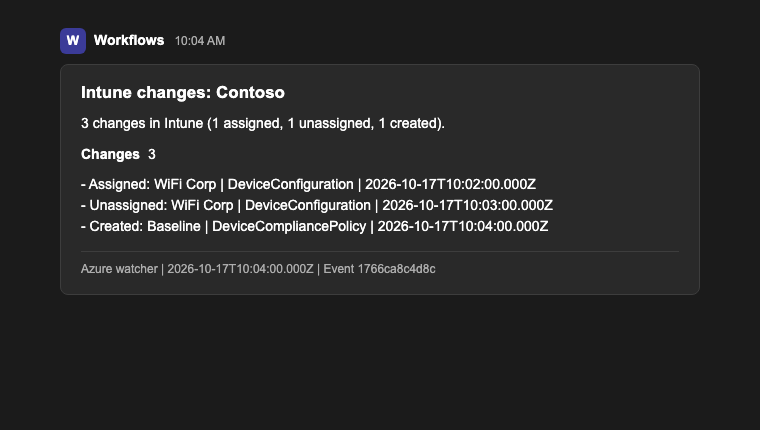
Messages arrive as an Adaptive Card posted by Workflows, with the event title, summary, details and changed items. Good to know: the workflow belongs to the person who created it and stops when that account is disabled, and tenant policies for the Workflows app can block it. If a test message fails, the channel shows the answer it got.
Email is sent through Microsoft Graph as the signed-in admin. It needs the optional Mail.Send permission: re-run the app registration script with -IncludeNotifications to add it, see Permissions. Without it, email deliveries fail with a Graph permission error while other channels keep working.
Recipients can be:
- Email addresses, including distribution lists and Microsoft 365 group addresses. Exchange expands them. Note that a Microsoft 365 group only delivers to members who subscribed to group mail.
- An Entra group you pick or paste by object ID. Its members are resolved when the mail is sent, guests excluded, up to 200 people. Larger groups should use a distribution list address instead.
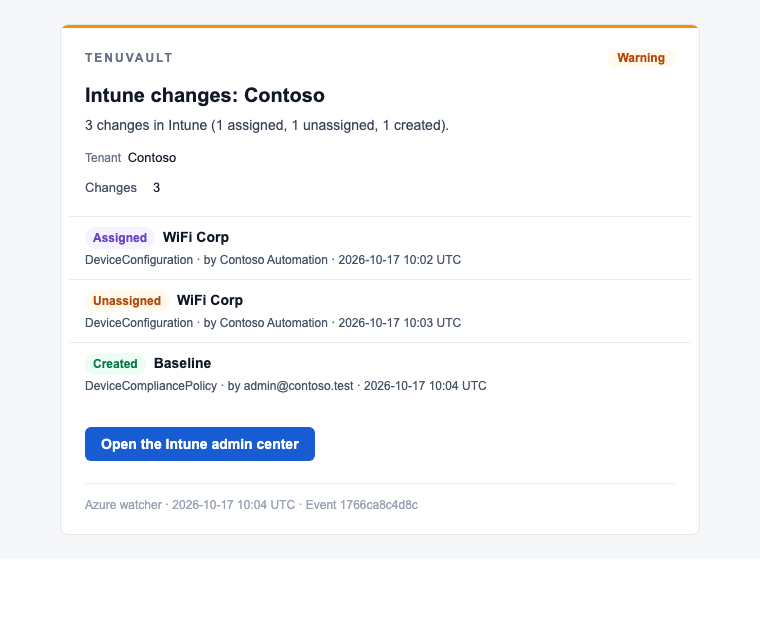
Mail arrives as HTML with a severity badge, one row per change with a colored verb marker (created, updated, deleted, assigned, unassigned), readable UTC times, and, for Intune change digests, a button into the Intune admin center. The same design is used by the desktop app and the Azure watcher. Links in mail are fixed Microsoft addresses chosen by TenuVault; links from tenant data are never rendered.
A rule has event types, a minimum severity and one or more channels. A useful starting point:
- One rule for backup failed, backup warnings, restore failures and drift, at info and above, to your Teams channel and email.
- Success events only if you really want them. Most tenants find them noise within a week.
Delivery is at least once. An undelivered notification stays queued, retries with backoff, and survives restarting the app. In the rare case a destination accepted a message but the confirmation was lost, the same event can arrive twice; the eventId is identical so receivers can dedupe. Recent deliveries, including failures and retries, are listed under the channels.
Intune change watching
Section titled “Intune change watching”Change watching reads the Intune audit log through Microsoft Graph and digests new events into one intune.change message per poll: what was created, updated, deleted, assigned or unassigned, the policy name when the audit event carries it, and who did it. Read-only audit events (views and searches) are not changes and never appear in a digest. A digest that contains a deletion or a removed assignment is sent with warning severity.
- On the desktop, watching runs while TenuVault is running and you are signed in. Default polling is every 15 minutes. After the app was closed it catches up from where it left off; after a long gap the digest says older changes may be missing.
- Changes made through TenuVault itself are ignored by default, so your own restores do not alert you.
- Repeated edits of the same policy by the same admin collapse into one line with a count, and a digest shows at most 20 lines plus a remainder count, so a bulk edit does not flood a channel.
- The watcher reads a fixed list of audit fields (ids, times, category, operation type, actor, resource names). Audit request bodies and changed setting values are never read or sent.
- The actor name is personal data and is off by default. Turn it on only for destinations your policies allow it to reach.
Alerts while this computer is off: the Azure watcher
Section titled “Alerts while this computer is off: the Azure watcher”Desktop notifications stop when the computer is off, asleep or signed out. The Azure watcher closes that gap. It is a PowerShell runbook in an Azure Automation account in the customer tenant, running on a schedule with a managed identity and no stored secret. It watches the same Intune audit events and checks the age of the newest backup folder in the backup storage account, then delivers to the same kinds of channels: webhook, Teams Workflows and email. The event content and the mail design are identical to the desktop app.
What it can and cannot see, plainly:
- It reads Intune audit events with the application permission
DeviceManagementApps.Read.All. - It reads backup folder names to detect a missed backup. Backup content and backup status details are encrypted with your recovery key, which never leaves your computer, so the watcher reports missed backups by age, while success and failure detail comes from the desktop app.
- It writes only to its own state container (
tenuvault-notification-state) and claims a lease on its state before sending, so overlapping runs cannot send twice. - Email from the watcher sends app-only from a mailbox you choose. Setup asks you to restrict that permission in Exchange to the one mailbox before the email channel is used.
Setup is two copy and paste scripts in the TenuVault repository under resources/: New-TenuVaultNotificationWatcher.ps1 creates the Automation account, imports runbooks/Invoke-TenuVaultNotificationCheck.ps1, sets the schedule and storage roles, and with -GrantGraphRoles (Global Administrator) assigns the Graph application roles and prints a consent receipt. Re-running the script upgrades the runbook in place. -Remove tears the schedule, runbook and variables down again and lists the app roles to revoke.
Costs are the Automation job minutes of short read-only runs in the customer subscription. The setup script prints the cadence it configured; start hourly and tighten only if the latency matters.
One full setup run looks like this. The storage account is the one from the backup setup, the resource group is created when it is missing (that is what -Location is for), and the script is safe to run again for upgrades:
./New-TenuVaultNotificationWatcher.ps1 ` -TenantId <tenant-guid> -StorageAccountName <backup-storage-account> ` -ResourceGroupName rg-tenuvault-watchers -Location northeurope ` -TeamsWebhookUrl <workflows-url> -AlertEmail you@example.com ` -GrantGraphRoles -IncludeMailSend ` -MailSender notifications@contoso.com ` -MailRecipients team@contoso.comIf the watcher itself breaks
Section titled “If the watcher itself breaks”A watcher that fails silently would defeat its purpose, so setup refuses to guess about failure reporting. Pass -AlertEmail and the script creates an Azure Monitor action group and a metric alert on failed Automation jobs in the watcher resource group, so a broken watcher emails you through Azure Monitor, independent of the runbook itself. Passing -NoFailureAlert is the explicit opt-out. Successful runs also write heartbeat.json (last run time, watermark, last error) into the state container. A fresh heartbeat is the quickest health check. A stale one only means there is no recent health evidence: a watcher that lost storage access keeps failing without updating it, so check the Automation account’s job history to see whether runs happen and how they fail.
Two setup errors worth knowing before you meet them:
Conflictwhile creating the Automation account usually means the regional Automation account quota (as low as 2 accounts per region on many subscription types) or the account name being taken in that region. Run again with another-Locationor-AutomationAccountName.- A run that reports a missed backup check failure after listing the storage account is a real storage or role problem. The message includes the storage answer; check that the identity still has its two container-scoped roles and that they are permanently active, not PIM-eligible.
Watcher email and the one-time verification
Section titled “Watcher email and the one-time verification”The watcher sends mail app-only with the Mail.Send application permission. On its own that permission could send as any mailbox, so the watcher refuses to use it until you prove from the receiving side that Exchange restricts it. Setup can grant the role (-IncludeMailSend -GrantGraphRoles), but the restriction and the proof are yours to run once:
- Create a mail-enabled security group containing only the sender mailbox, then restrict the watcher identity to it in Exchange Online PowerShell:
New-ApplicationAccessPolicy -AppId <watcher identity application id> -PolicyScopeGroupId <group> -AccessRight RestrictAccess. Setup prints the identity’s principal (object) id, which is not the application id Exchange wants. Get the application id from that principal id in Microsoft Graph PowerShell with(Get-MgServicePrincipal -ServicePrincipalId <principal id>).AppId, or in the Entra admin center under Enterprise applications on the identity’s page. - Set
-MailSenderto that mailbox and-MailProbeMailboxto a second mailbox that is outside the group. - Start the runbook once with the
VerifyMailOnlyparameter set. It sends a short verification mail as the sender (must succeed), then attempts to send as the probe mailbox (must be rejected with HTTP 403). Only then does it recordmailVerifiedinstate.json, and normal runs start delivering mail. The verification expires after 90 days, and changing the sender requires a new one; normal runs say so in their output and skip mail until it passes again.
Plan for Exchange propagation: a brand-new access policy and scope group can take hours before app-only sending is actually allowed for the in-scope mailbox. During that window verification fails with ErrorAccessDenied ... [RAOP] Blocked by tenant configured AppOnly AccessPolicy settings. First rule out the configuration causes with the same error text: the sender mailbox is really a member of the scope group, the policy uses the identity’s application id (not its principal id), and Test-ApplicationAccessPolicy says Granted for the sender and Denied for an outside mailbox. If all of that reads correctly, what remains is propagation. Do not rebuild the policy then; rebuilding restarts the wait. Re-run the verification later the same day or the next morning.
Troubleshooting
Section titled “Troubleshooting”| Symptom | Likely cause |
|---|---|
| Test message fails with a Graph permission error on email | The app registration lacks Mail.Send. Re-run it with -IncludeNotifications and sign in again. |
| Teams test returns an error from the workflow | The workflow was deleted, its owner left, or a tenant policy blocks Workflows webhooks. Recreate the workflow and paste the new URL. |
| No Intune change digests | Watching is off, you are signed out, or changes were made through TenuVault and are being ignored. The watch card shows the last poll and its error. |
| The same alert arrived twice | A delivery succeeded but its confirmation was lost and the queue retried. The eventId is the same; this is expected at-least-once behaviour. |
| Webhook URL refused | Only public https addresses are allowed, without credentials in the URL. |
Watcher mail verification fails with ErrorAccessDenied ... [RAOP] | The Exchange application access policy or its scope group has not propagated yet, or the sender mailbox is not in the scope group. Wait and re-run verification; see the watcher email section above. |
| Watcher output says mail delivery is skipped | Mail was never verified for this sender, the sender changed, or the verification is older than 90 days. Run the runbook once with VerifyMailOnly. |
Automation account creation fails with Conflict | Regional Automation account quota or name taken. Retry setup with another -Location or -AutomationAccountName. |
| Azure Monitor reports failed watcher jobs | Open the newest job in the Automation account. The exception names the step; heartbeat.json in the state container shows the last error and watermark. |